Spring Boot with Cloud Spanner
Learn how to connect a Spring Boot application to Google Cloud Spanner, Google's distributed SQL database, with a step-by-step example.
What is Cloud Spanner?
Spanner is a distributed SQL database management and storage service developed by Google. It provides features such as global transactions, strongly consistent reads, and automatic multi-site replication and failover.
Configuring GCP for Cloud Spanner
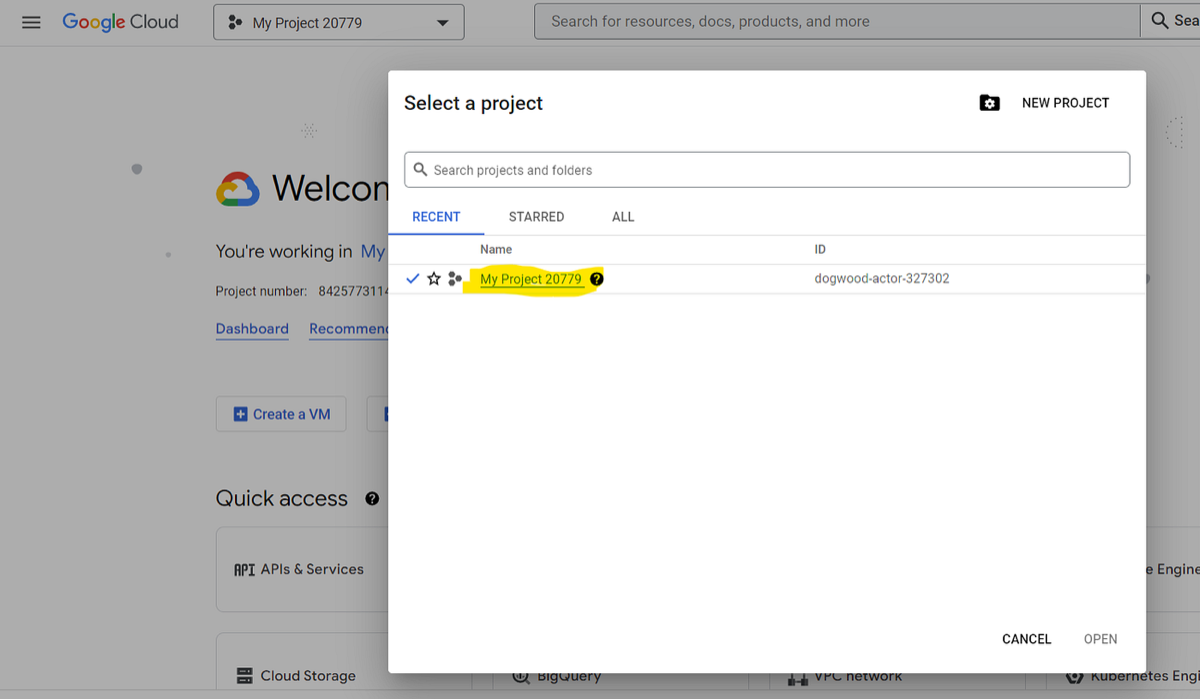
- Create a Project or Choose an existing project.

2. Go to Cloud Spanner from GCP services

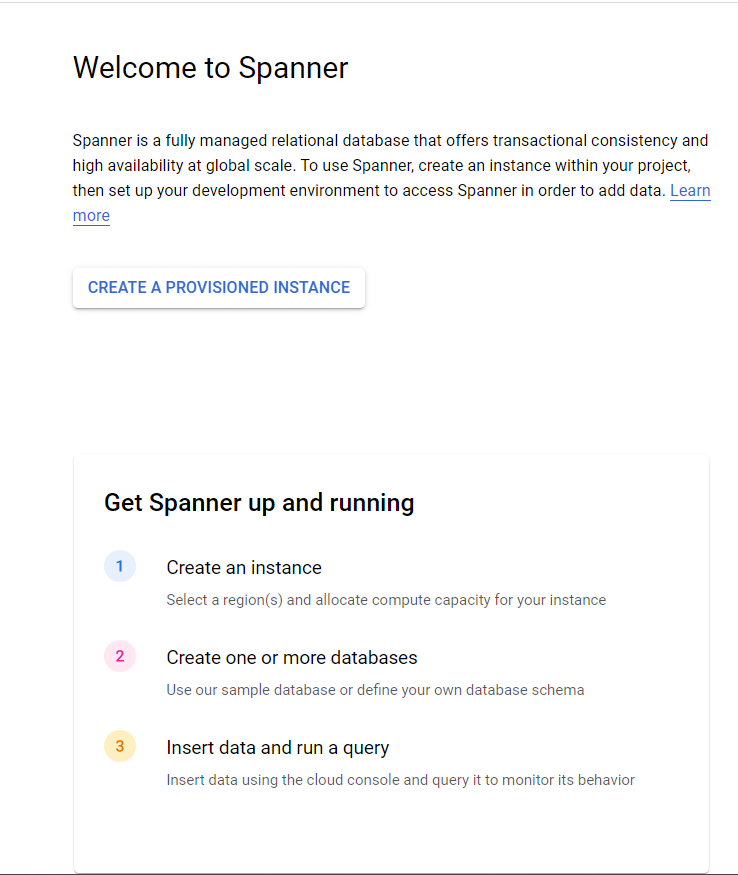
3. Create a new Instance.
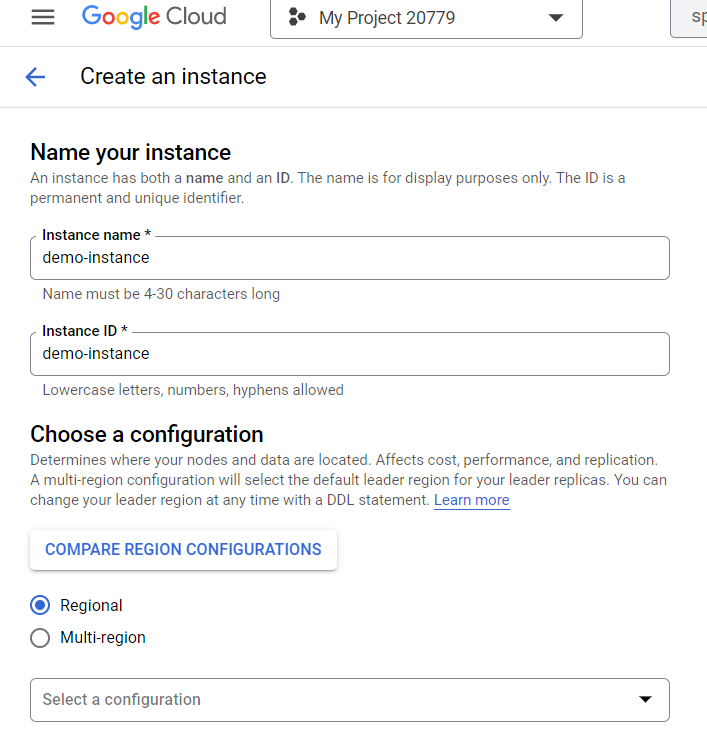
3.1. Provide the name and select the regional or multi-regional.
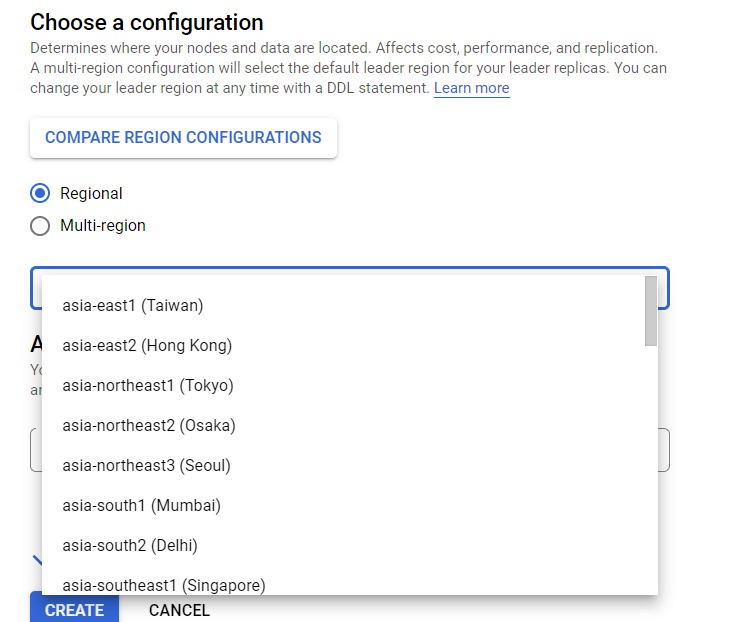
3.2. Select the configuration location.
3.3. Modify the compute allocation according to the need.
3.4. Click on Create to create the instance.
4. Create the database
4.1. Give your DB a name
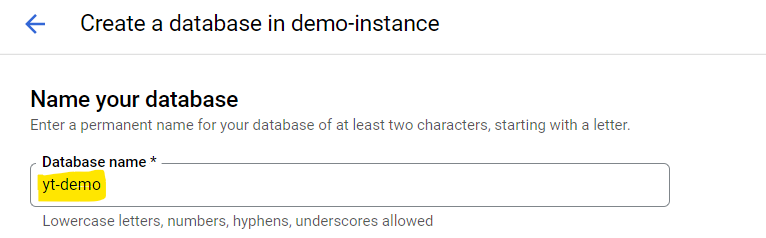
4.2. Select the DB dialect between Google Standard SQL and PostgreSQL
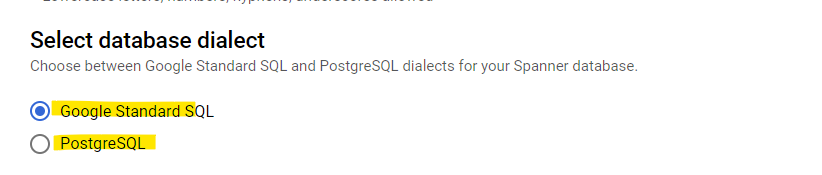
4.3. Create your DB.

5. Create Schema/Tables under DB
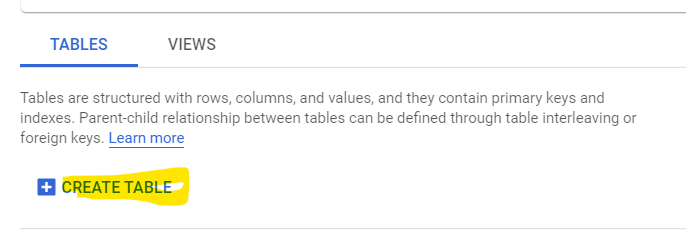
5.1 Update the DDL to create the Table.
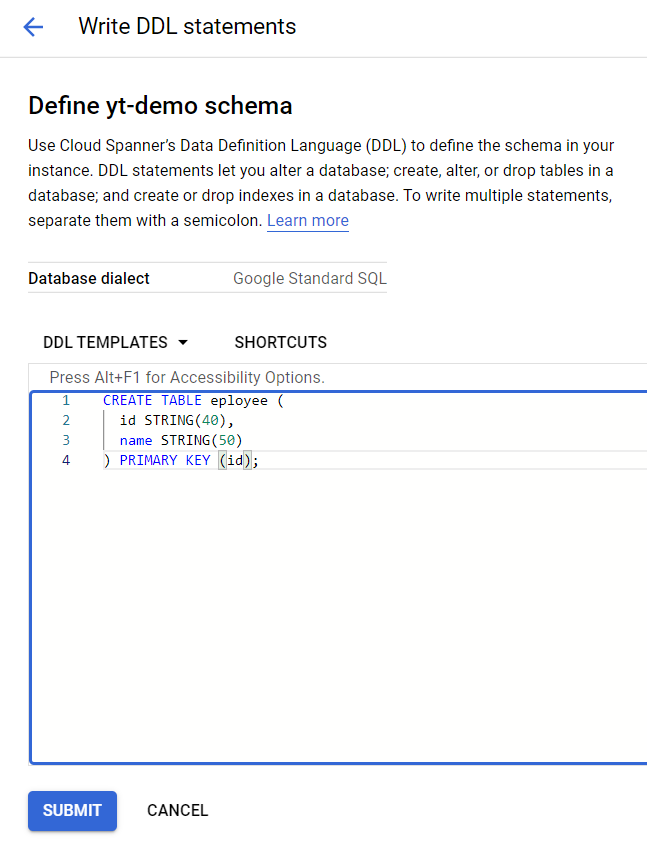
5.2 Submit to create the DB.
Create a Service account to access the Spanner Database.
- Goto IAM&Admin
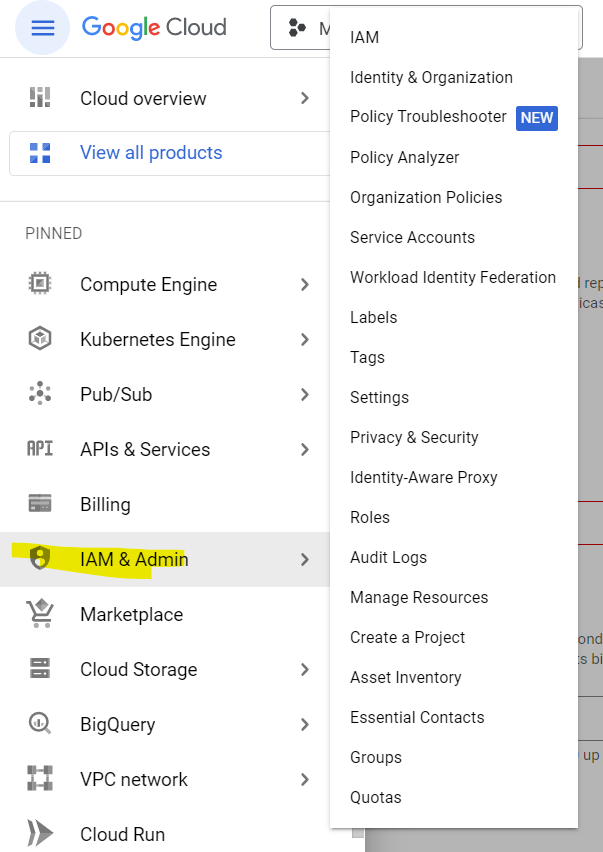
2. Select “Service Accounts” from the side nav bar
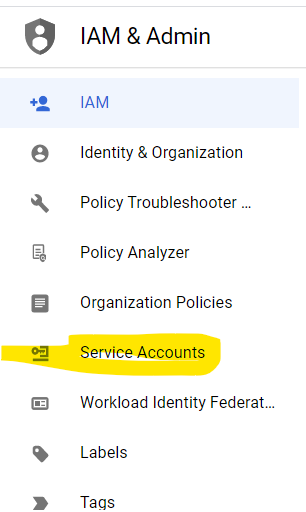
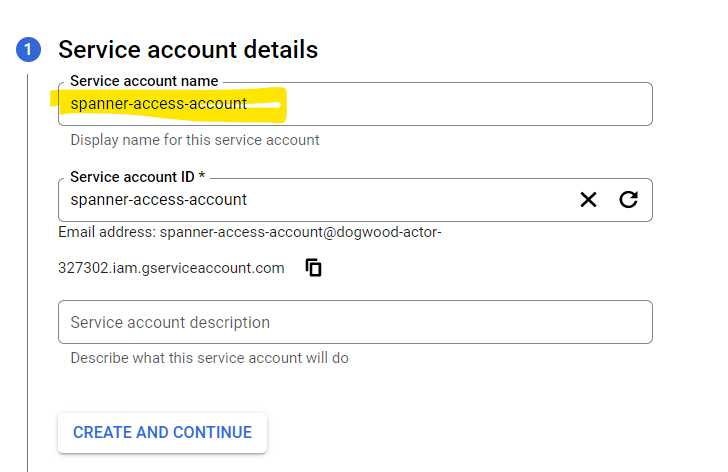
3. Click on Create New Service Account.

3.1 Provide the name of your service account.
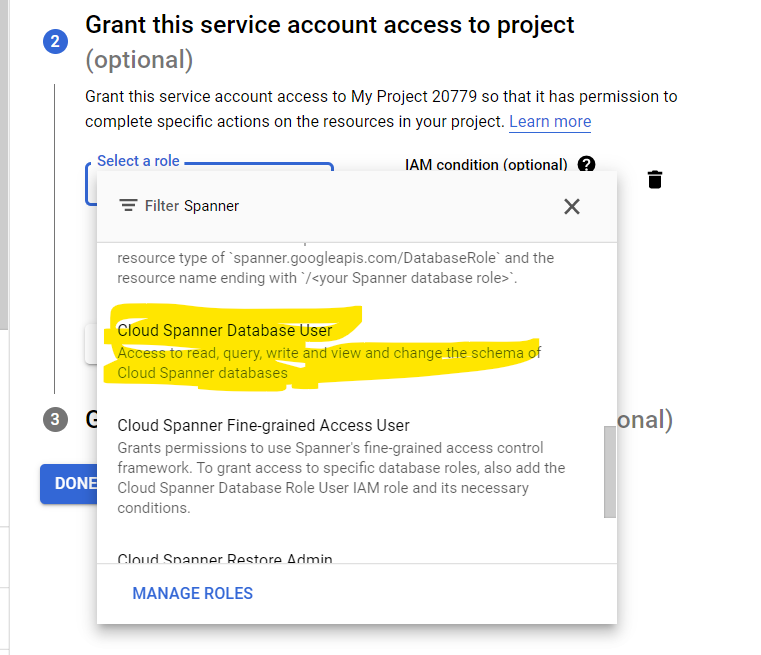
3.2 Select the least privilege to the service account to access the Spanner. I have selected “Cloud Spanner Database User”.
3.3. Continue and save the Service account.

4. Once the service account is created. Move to the “Keys” tab and add a new key of type JSON.
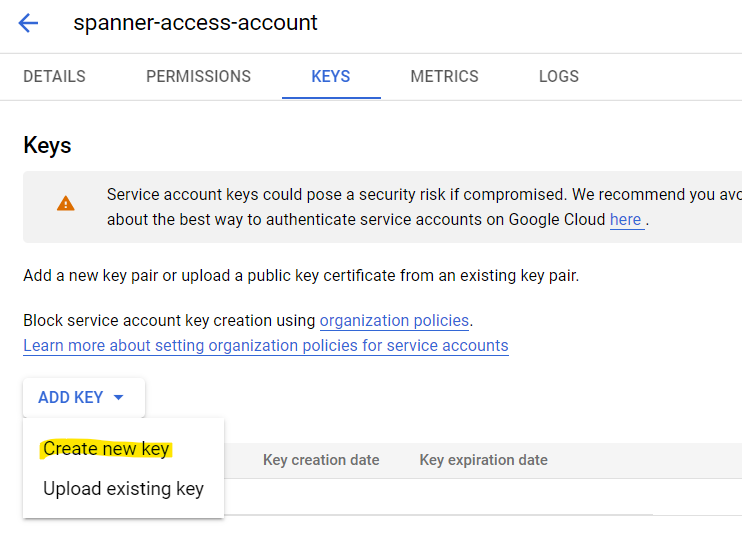
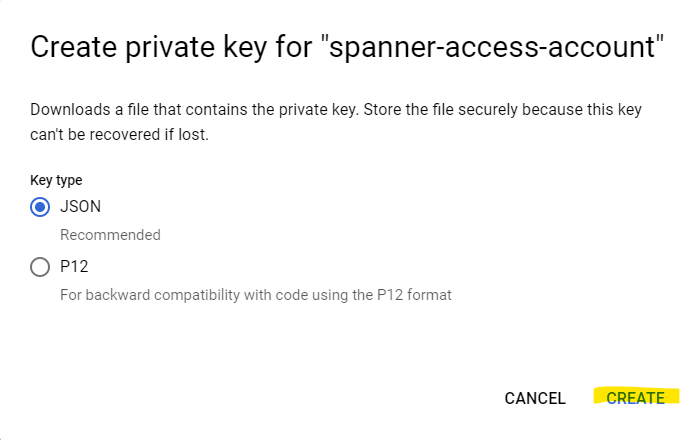
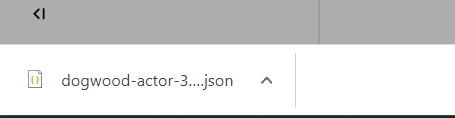
5. Now the key will be downloaded to your local, keep the file in a safe place. We will use it in our spring boot project to connect to GCP and read/write data from Cloud Spanner.
Creating Spring Boot Project from Spring Initializer.
Create a new Maven project with Java and the below dependencies.
Import the project into your IDE.
<dependency>
   <groupId>org.springframework.boot</groupId>
   <artifactId>spring-boot-starter-web</artifactId>
</dependency>
<dependency>
   <groupId>com.google.cloud</groupId>
   <artifactId>spring-cloud-gcp-starter</artifactId>
</dependency>
<dependency>
   <groupId>com.google.cloud</groupId>
   <artifactId>spring-cloud-gcp-starter-data-spanner</artifactId>
</dependency>
Add the GCP Credential file to the resource folder
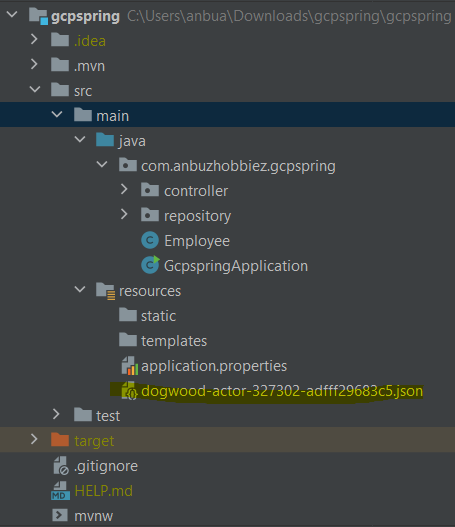
Add spring boot GCP and Cloud Spanner properties to application.properties
spring.cloud.gcp.project-id = dogwood-actor-327302
spring.cloud.gcp.credentials.location=classpath:dogwood-actor-327302-965c42582e1c.json
spring.cloud.gcp.spanner.instance-id=demo-instance
spring.cloud.gcp.spanner.database=yt-demo
Create Employee Model class and annotate with @Table and @PriamaryKey
@Table(name = "employee")
@Data
@AllArgsConstructor
public class Employee {
    @PrimaryKey
    private String id;
    private String name;
}
Create a Repository to access data from Cloud Spanner. EmployeeRepository.java extends SpannerRepository
@RepositoryRestResource
public interface EmployeeRepository extends SpannerRepository<Employee, String> {
}
Create a REST EndPoint “/greet” to add data into Spanner DemoController.java
@RestController
public class DemoController {

    @Autowired
    EmployeeRepository employeeRepository;

    @GetMapping("/greet/{name}")
    public String greet(@PathVariable String name){
        employeeRepository.save(new Employee(
                UUID.randomUUID().toString(),
                name
        ));
        return "Hello "+name;
    }
}
All set now Run the application and test. No calling “/greet” with path variable name should add the name into Cloud spanner DB.
Please find the GitHub URL below. You have to add your GCP service account credentials to make the app work.
Let’s share the learning and knowledge.
Get new articles by email
One short email whenever a new article is published. No spam, unsubscribe anytime.
Comments
No comments yet. Be the first to share your thoughts.